The best AI video editor depends on the work you need finished. Editing a full interview, finding clips for Shorts, generating a scripted presentation, and enhancing a noisy shot are different jobs. Start with the source material and the control you need after the first result.
For conversational editing of existing footage, compare ChatCut, Descript, invideo Editor, and Premiere’s AI Assistant beta. For transcript-led recordings and podcast clips, also consider Riverside. For a complete editing and finishing environment, evaluate Premiere, DaVinci Resolve, or Final Cut Pro. The sections below cover all 15 tools by workflow.
Key Takeaways
- Choose by your source material and delivery format before comparing AI feature lists.
- Check whether the result remains editable through a transcript, scenes, or a timeline.
- Distinguish highlight selection, generative visual changes, avatar production, and enhancement.
- Compare media allowances, AI credits, export limits and seats against your actual workload.
- Test one representative recording and inspect the final export before choosing a plan.
What Is an AI Video Editor?
An AI video editor uses automated tools to assist with some part of creating or changing a video. Depending on the product, that can mean transcription, captions, silence removal, clip selection, visual generation, enhancement, or a conversational assistant that applies editing instructions.
These capabilities do not describe the same workflow. A tool that changes the contents of a shot may serve a different purpose from one that selects complete answers from an interview. An editable first cut still needs review for meaning, timing, framing and delivery requirements.
How We Evaluated These Tools
ChatCut publishes this guide and is one of the products included. This October 13, 2026 revision uses the official product documentation linked beside the claims and our attributed ChatCut walkthroughs. The recommendations are editorial judgments about workflow fit.
This revision does not report a new identical-footage benchmark, measured caption-accuracy ranking, or rendering-speed test across all 15 products. Product documentation establishes available features; it does not establish which editor produces the best result on your recordings. We link examples readers can inspect and provide a repeatable evaluation checklist below.
What to Look for in an AI Video Editor
Compare the complete route from import to export. Check supported source media, how you can correct the draft, whether captions and framing remain editable, and what the chosen plan allows. For team work, include review permissions and seats. For a desktop application, check the current system requirements and run your media on your hardware.
Best AI Video Editors at a Glance
The table groups jobs and controls, rather than ranking measured speed or accuracy. Follow the product sections for official sources and current plan checks.
| Editor | Workflow to consider | What to inspect | Plan check |
|---|---|---|---|
| ChatCut | Conversational edits to existing footage | Prompts, transcript and editable timeline | Starter credits, AI usage and exports |
| Descript | Spoken recordings and transcript edits | Underlord, text edits and layouts | Media hours, AI credits and exports |
| CapCut | Social captions and reframing | Desktop timeline and Auto Reframe | Surface-specific features and subscription |
| VEED | Online edits and highlight clips | Timeline layers and AI Clips | Upload, clips and export allowances |
| Adobe Premiere | Professional editing and AI-assisted assembly | Manual controls and AI Assistant beta | Subscription and beta availability |
| DaVinci Resolve | Editing, color, effects and audio | Cut/Edit, Fusion and Fairlight | Free versus Studio features |
| Final Cut Pro | Mac or iPad workflows | Platform-specific editing and AI tools | Platform, hardware and purchase option |
| Runway | Visual changes inside a short sequence | Edit Studio prompts and frame preview | Model, sequence and credit limits |
| OpusClip | Long-video repurposing | Clip selection, captions and reframing | Processing minutes and export limits |
| Filmora | Visual edits, text edits and short clips | Editing controls and AI tools | License, AI credits and exports |
| invideo | Prompted assembly and scripted creation | Editor timeline versus generated scenes | Product surface, credits and exports |
| Kapwing | Collaborative browser edits | Timeline, transcript and Smart Cut | Workspace, AI and export allowances |
| Synthesia | Scripted presentations and avatars | Scenes, scripts and uploaded media | Video allowance and available features |
| Topaz Video | Footage enhancement | Models, preview and output settings | Subscription, hardware and cloud credits |
| Riverside | Recording, conversation edits and clips | Transcript, layouts and Magic Clips | Recording, editing and AI allowances |
15 Best AI Video Editors in 2026
Use the categories as starting points for a shortlist. Several products support more than one workflow, and an AI feature’s presence does not establish its accuracy on your footage.
Best AI Video Editor for YouTube Creators
A full upload and a Shorts cutdown have different review requirements. Decide whether your main job is finishing the long edit or selecting excerpts from an existing recording.
1. OpusClip
OpusClip describes a long-video-to-shorts workflow with clip selection, reframing and captions. Consider it when repurposing an existing upload is the main job, then review the proposed clips in the context of the full recording.
Check whether each selected moment preserves a complete answer, whether the framing follows the intended person or subject, and whether captions need correction. A virality score is a product signal to evaluate, not evidence that a clip will perform well on your account.
Plan check: inspect processing allowances, source-length limits, caption options and export conditions on the current plan. For a broader project, compare the ChatCut and OpusClip workflows.
2. VEED
VEED’s timeline guide covers trimming, splitting, reordering and layered media. Its separate Clips guide describes AI highlights from speech-led recordings, with reframing and subtitles.
Consider VEED when you want online editing controls alongside a clipping workflow. Evaluate the full edit and the proposed highlights separately; choosing a short clip does not finish the longer upload.
Plan check: compare upload, clips and export allowances. The documented Clips input requirements and plan availability are more useful than an unqualified language-count or speed claim.
Best AI Video Editor for Long Videos
For a long spoken recording, evaluate the transcript, the continuity around deleted words and the controls for the full-length result.
3. Descript
Descript’s Underlord page describes conversational assistance alongside text edits, scenes, layouts and speech-cleanup tasks. Consider it when the spoken content drives your edit and you want to move between the transcript and the visual arrangement.
Test names, technical terms, overlapping speech and the transitions around deleted words. Review whether the resulting pacing preserves the speaker’s intended meaning, and whether the layout controls meet your visual requirements.
Plan check: compare media-hour allowances, AI credits and export limits against your recording volume. See the ChatCut and Descript comparison for another workflow perspective.
Best AI Video Editor for Podcast Video Creation
For a podcast, include recording quality, speaker layouts, audio continuity and the context retained in clips.
4. Riverside
Riverside’s AI tools overview documents tools for refining recordings, including Magic Clips. Its Magic Clips guide covers highlights from recordings or uploaded files that have a transcript.
Consider Riverside when recording and editing a conversation belong in the same workflow. Review speaker layouts, audio continuity and the context retained in generated clips. Use a representative multi-speaker recording for that evaluation.
Plan check: compare recording, storage, editing and AI allowances on the current plan. Check the documented source requirements before assuming every recording will produce clips.
Best AI Video Editor for Agentic Video Editing
For conversational editing, compare what each assistant can change, how you inspect the draft and whether the project remains editable.
5. ChatCut
ChatCut’s AI video editor combines instructions, transcript editing and an editable multi-track timeline. It is available on macOS, Windows and in a desktop browser, with an Agent Plugin for supported desktop agent apps.
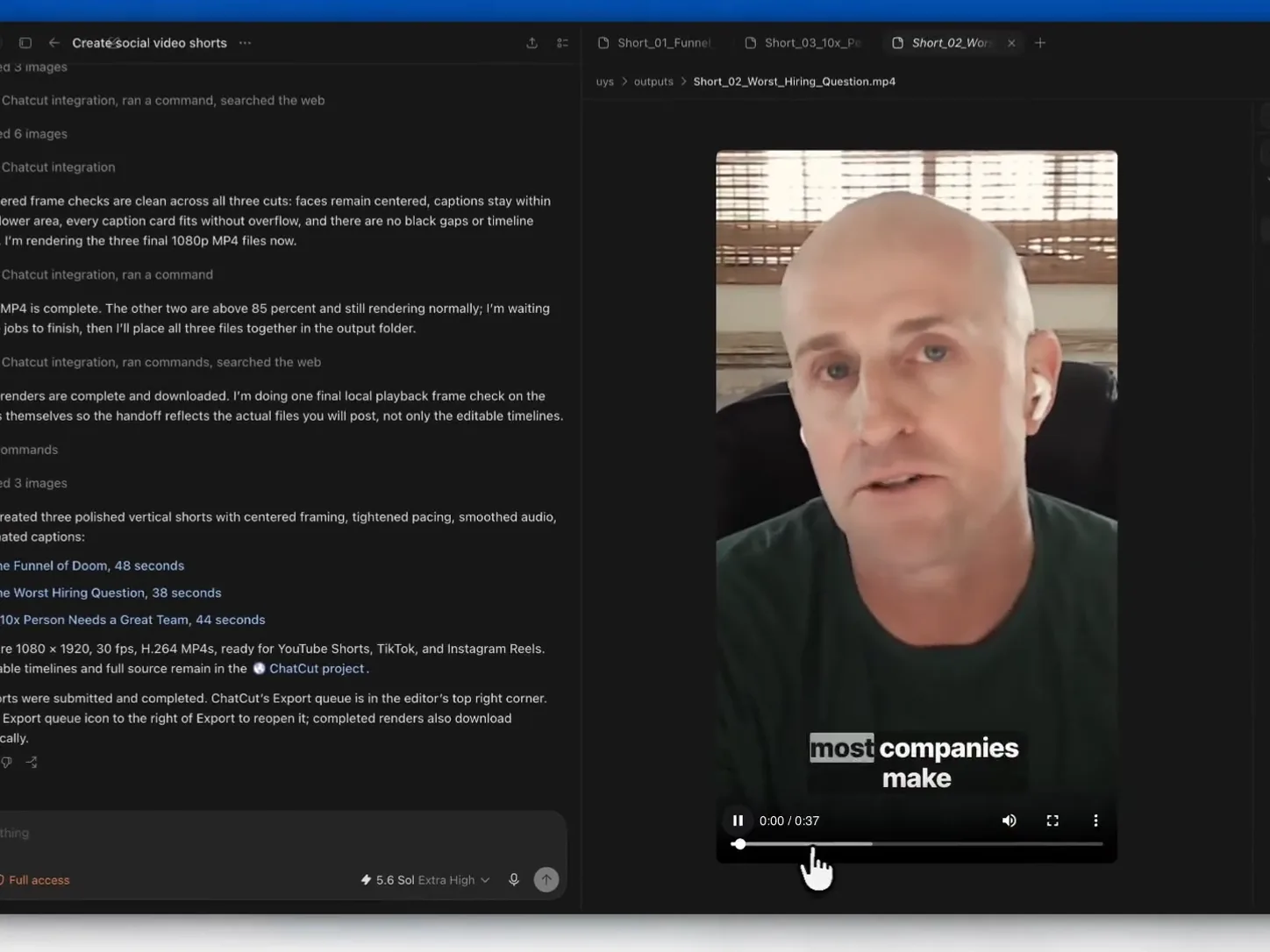
Consider it when you want to continue between a conversation and manual controls. The timeline guide and transcript and caption guide explain the project controls. Our ChatGPT editing walkthrough documents a podcast-to-shorts task with its prompt, recording and output details. Justin Brown’s Primal Video walkthrough shows a tutorial edit and layout correction; that guide discloses affiliate links.
Plan check: a free account includes starter credits. Review pricing, Free and Pro and export limits. Inspect generated cuts and the final export before publishing. ChatCut is one conversational editing option among the products in this guide.
Best AI Video Editor for Reels
For Reels, review caption corrections, framing and pacing across the full vertical export.
6. CapCut
CapCut’s Desktop AI feature page lists tools including Auto Captions, Auto Reframe, filler-word removal and Smart Search. Consider it when captions and social framing are central to the edit.
Check the full clip’s caption corrections, subject framing, pacing and export. If you work across mobile, desktop and web, verify the exact surface you plan to use rather than assuming feature parity.
Plan check: review the current account and surface-specific feature availability. A free tier does not establish that every AI feature or export option is included.
Best AI Video Editor for TikTok
For TikTok, start with the source material: your own recordings, a script, or generated scenes. Check the route to correcting the finished project.
7. InVideo AI
invideo Editor documents a browser workspace with AI agents, manual timeline controls and collaboration. Its first-cut guide describes reviewing uploaded footage and assembling an initial cut.
Consider the Editor when you want prompted assembly of your own material. Distinguish that workflow from creating generated scenes from an idea or script; choose the surface that fits the source footage and the corrections you need to make.
Plan check: inspect the chosen product’s credits, media and export allowances. Review generated assets, source selections and the final assembly before publishing.
8. Kapwing
Kapwing’s video editor provides a browser timeline with layered media and transcript editing. Its Smart Cut guide describes automatic silence removal and scene detection.
Consider it when online editing and shared review fit your work. Test whether silence removal preserves useful pauses and whether transcript edits remain easy to correct. For social delivery, inspect captions and framing throughout the export.
Plan check: compare workspace seats, AI allowances and export limits. Feature descriptions do not establish measured accuracy or a universal speed advantage.
Best AI Video Editor for Social Media and Ads
For a visual change within a shot, examine continuity and the result in the context of the complete edit.
9. Runway
Runway’s AI video editor describes Edit Studio and Aleph 2.0 for changing visual content within footage using prompts and a frame preview. The documented workflow has sequence and plan limits.
Consider it when the contents of a shot need changing. Evaluate the generated result for continuity, subject appearance and how it fits adjacent shots. This is a different evaluation from selecting complete excerpts from a long interview.
Plan check: verify the model, sequence length, resolution and credit requirements for the operation you need. Do not assume that a general video-generation allowance covers every editing operation.
Best Free AI Video Editor in 2026
Compare the free edition against the particular task and export you need. A free entry point does not mean all AI features are included.
10. DaVinci Resolve
Blackmagic’s DaVinci Resolve product guide describes editing, color, Fusion visual effects, Fairlight audio and Neural Engine tools. Consider it when finishing requirements are as important as the first cut.
Use a project that includes the actual media formats, effects and audio work you expect to deliver. Evaluate the relevant editing, color and audio pages on your hardware rather than treating a broad feature list as a performance benchmark.
Plan check: Blackmagic offers a free edition and Studio. Compare the current editions before assuming a particular AI function is included in the free download.
11. Synthesia
Synthesia’s scene guide describes organizing a scripted video into scenes. Its media guide covers uploaded and stock media alongside other scene elements.
Consider it for scripted presentations with avatars, layouts and supporting media. Evaluate pronunciation, script pacing and visual layout in the language you intend to publish. Uploaded-media support also matters when an existing clip belongs in the presentation.
Plan check: Synthesia lists a free Basic account and paid plans on its pricing page. Inspect video allowances, avatar and language availability, collaboration features and export conditions. Language support does not establish comparative translation or pronunciation accuracy.
Best AI Video Editor for Mac
Check the application version, hardware requirements and project controls on the Mac you intend to use.
12. Final Cut Pro
Apple’s Final Cut Pro page covers Mac and iPad products with platform-specific editing and AI features. Consider the version that matches your hardware and the workflow you want to maintain.
Test your media, effects, caption requirements and delivery format on that device. Compare the controls and feature availability between Mac and iPad rather than assuming they are identical.
Plan check: Apple lists subscription options and a one-time Mac purchase. Check current hardware, operating-system and feature requirements before comparing the purchase options.
13. Adobe Premiere Pro
Adobe’s Premiere AI Assistant overview describes a public beta for natural-language organization, transcript-related work and rough assembly, alongside editable Premiere controls.
Consider Premiere when its broader editing workflow fits your project. Evaluate the conversational beta separately from established manual tools, and follow Adobe’s guidance about working in new or duplicated projects while testing the beta.
Plan check: verify the subscription and beta availability for your account. Compare the exact plan rather than using a Creative Cloud bundle price as if it were the individual Premiere price.
Best AI Video Editor for Beginners
For a first project, evaluate the route from import to corrections and export, using media representative of the work you expect to make.
14. Wondershare Filmora
Filmora’s AI editing overview lists tools including AI Text-Based Editing and Smart Short Clips alongside a visual editor. Consider it when you want to compare those assisted workflows with direct visual controls.
Test whether the import, draft corrections and export feel manageable for the person who will use the project. Review the transitions, audio and captions in the finished video rather than assuming AI makes all editing decisions correctly.
Plan check: compare the editor license, included AI credits, export conditions and the exact desktop or mobile surface you need.
Best AI Video Editor for Post-Production
Enhancement is one step in post-production. Compare its result with the source and inspect the output before bringing it into the main edit.
15. Topaz Video AI
Topaz Video is an enhancement application for existing footage, with tools for noise reduction, sharpening, upscaling, stabilization and frame-rate changes. Consider it when image quality needs a separate finishing step.
Compare a representative preview with the original footage. Inspect faces, text, fine texture, moving objects and the transitions between frames; a larger output resolution alone does not establish a better result.
Plan check: distinguish the current Topaz Video subscription from legacy Video AI licenses. The cloud-rendering guide explains cloud credits and model requirements. Local and cloud processing have different requirements; the product should not be described as universally local-only or credit-free.
How to Choose the Right AI Video Editor
Use the same source material and delivery requirements for each editor on your shortlist. Record the product version, account plan and test date so the result remains interpretable.
- Import and draft: check the files, requested duration, aspect ratio and the source material included in the first result.
- Correct the edit: fix a name, change a cut, adjust the framing and revise a caption. Check that you can keep working in the project.
- Review quality: inspect context, speech continuity, captions, audio balance and the full exported video.
- Record the cost: note elapsed time, manual corrections, consumed allowances and whether the required export needs a paid plan.
A measured comparison should publish its source material, prompts, versions and results. A feature list or a vendor’s marketing claim is not a substitute for that evidence.
Ready to Edit Videos on ChatCut?
Start with one representative recording and a clear editing request. Review the first draft, make a manual correction and inspect the export. The ChatCut AI editor guide explains the conversation, transcript and timeline workflow; the worked example shows one recorded task with limitations.