The best AI video editor for YouTube depends on the job you need it to do. Cleaning a recorded tutorial, turning a podcast into Shorts, adding captions in a browser, and changing the background inside a shot are different editing problems.
This guide compares seven tools by those workflows. It uses current product pages and documentation rather than claiming a same-footage benchmark that was not recorded. Features, limits, and plans change, so verify the linked product page before committing a channel workflow to one tool.
What should a YouTube AI video editor handle?
For most YouTube workflows, compare these five capabilities:
- Existing-footage editing. Can it cut and rearrange footage you recorded, or does it mainly generate new clips?
- Reviewable control. Can you inspect and adjust the transcript, clips, captions, audio, and timeline after the AI pass?
- Format support. Can the same project produce a 16:9 video and a 9:16 Short without rebuilding the edit?
- Speech workflow. For tutorials, interviews, and podcasts, can it transcribe speech, remove selected pauses or filler words, and correct captions?
- Handoff and export. Can you export the required video or subtitle file, or continue the timeline in another editor when needed?
Do not evaluate an editor from its feature list alone. Use representative footage, make one manual correction after the AI pass, and inspect the exported file before adopting it for regular uploads.
Seven AI video editors for YouTube
- ChatCut: Prompt-led editing of speech-heavy footage using conversation, transcript, and a multi-track timeline. Check every AI selection and the final export.
- Descript: Transcript-first editing for recorded content using a transcript editor and Underlord assistant. Confirm current media-hour and AI-credit limits.
- OpusClip: Long-video repurposing using automated highlight selection, captions, and reframing. Confirm that its short-clip focus covers the job you need.
- CapCut: Template-rich production across devices using a timeline editor and AI tools. Confirm current platform and plan availability.
- VEED: Browser editing, captions, and quick social versions using a browser timeline and text-based editing. Check current export and AI limits.
- Runway: Generative changes inside short shots using prompted visual transformation with Aleph. Account for Edit Studio’s short sequence limit.
- Gling: Talking-head cleanup using automated bad-take, silence, and filler removal. Review the automatic removals before export.
1. ChatCut: prompt-led editing with an editable timeline
ChatCut’s AI video editor is built for existing footage. Describe a cut in plain language or edit the transcript, then inspect the result in the Viewer, Transcript, and multi-track Timeline. It is available in a desktop browser, on macOS and Windows, and through the ChatCut Agent Plugin in supported desktop agent apps.
That workflow suits talking heads, interviews, podcasts, tutorials, webinars, and screen recordings. ChatCut can also generate captions, music, motion graphics, images, and video inside the same project. AI changes remain normal project edits that you can move, trim, or undo.
The strongest public evidence is a recorded podcast-to-Shorts workflow with its source, prompt, output, and limitations. It shows one completed task rather than a universal speed or quality claim.
Check first: ChatCut makes a first pass; it does not remove the need to review editorial selections, framing, captions, audio, timing, and the final export.
2. Descript: transcript-first editing
Descript’s YouTube editor brings recording, transcription, editing, clips, and YouTube publishing into one product. Its Underlord assistant works from the transcript and can respond to requests such as removing filler words or finding clips. Descript also supports manual text-based editing when you want to choose the exact words that remain.
This is a strong fit when spoken content is the structure of the video and your team prefers editing a document. Descript’s current plans use media hours and AI credits, so check the live plan table for the amount your upload cadence requires.
Check first: test a real recording and confirm how the transcript workflow, AI assistant, timeline, and current usage limits fit your production volume.
3. OpusClip: long video to Shorts
OpusClip focuses on turning long videos into short clips. Its workflow imports a long video, selects moments using visual, audio, and sentiment cues, then produces clips with captions and reframing. Its editor can refine caption text and styling after the selection pass.
This is the narrowest fit in the list and often the clearest: use it when the main job is extracting Shorts from a podcast, webinar, interview, or other long source.
Check first: if you also need to assemble a full-length YouTube video, verify whether OpusClip’s editing surface covers the finishing work or whether you will hand the clips to another editor.
4. CapCut: templates and cross-device production
CapCut’s YouTube workflow includes timeline editing, captions, music, effects, and canvas choices for standard 16:9 uploads and 9:16 Shorts. Its official guide also documents auto captions, auto reframing, voice enhancement, and browser-based editing.
CapCut fits creators who want a large template and effects ecosystem across short-form and standard channel content. The product changes quickly across web, desktop, and mobile, so check the current experience on the device where you plan to finish the video.
Check first: confirm which AI tools, export settings, assets, and watermark rules are available on your current plan and platform.
5. VEED: browser editing and captions
VEED’s online editor supports timeline editing, text-based editing, captions, audio cleanup, B-roll, resizing, and browser export. Its YouTube editor describes a browser workflow for uploading footage, editing, adding subtitles, and exporting a file for YouTube.
VEED fits teams that want an online editing surface and place a high priority on captions, repurposing, and quick review. Its current free plan limits resolution and includes a watermark, while some AI tools are provided as trials.
Check first: verify the live export resolution, watermark, AI allowance, and subtitle-file options for your plan.
6. Runway: generative edits inside a shot
Runway Edit Studio uses Aleph to transform existing or generated footage from a prompt. It can replace backgrounds or objects, restyle footage, relight a scene, and apply changes across a short multi-shot sequence.
This is a different YouTube job from trimming a 20-minute tutorial. Runway is useful when one shot needs a generative visual change that would otherwise require compositing or a reshoot.
Check first: Runway documents Edit Studio sequences up to 30 seconds. Plan a separate assembly workflow for a longer episode.
7. Gling: talking-head cleanup
Gling is aimed at recorded YouTube content. It transcribes a raw recording and can remove bad takes, silences, and filler words. Its current product also lists captions, auto framing, audio enhancement, YouTube title and chapter tools, and exports for Premiere Pro, Final Cut Pro, and DaVinci Resolve.
This fits solo creators who want an automated cleanup pass before manual review or a handoff to another editor.
Check first: play through the proposed removals. Automatic bad-take and silence decisions can change pacing or remove an intentional pause.
Which workflow should you choose?
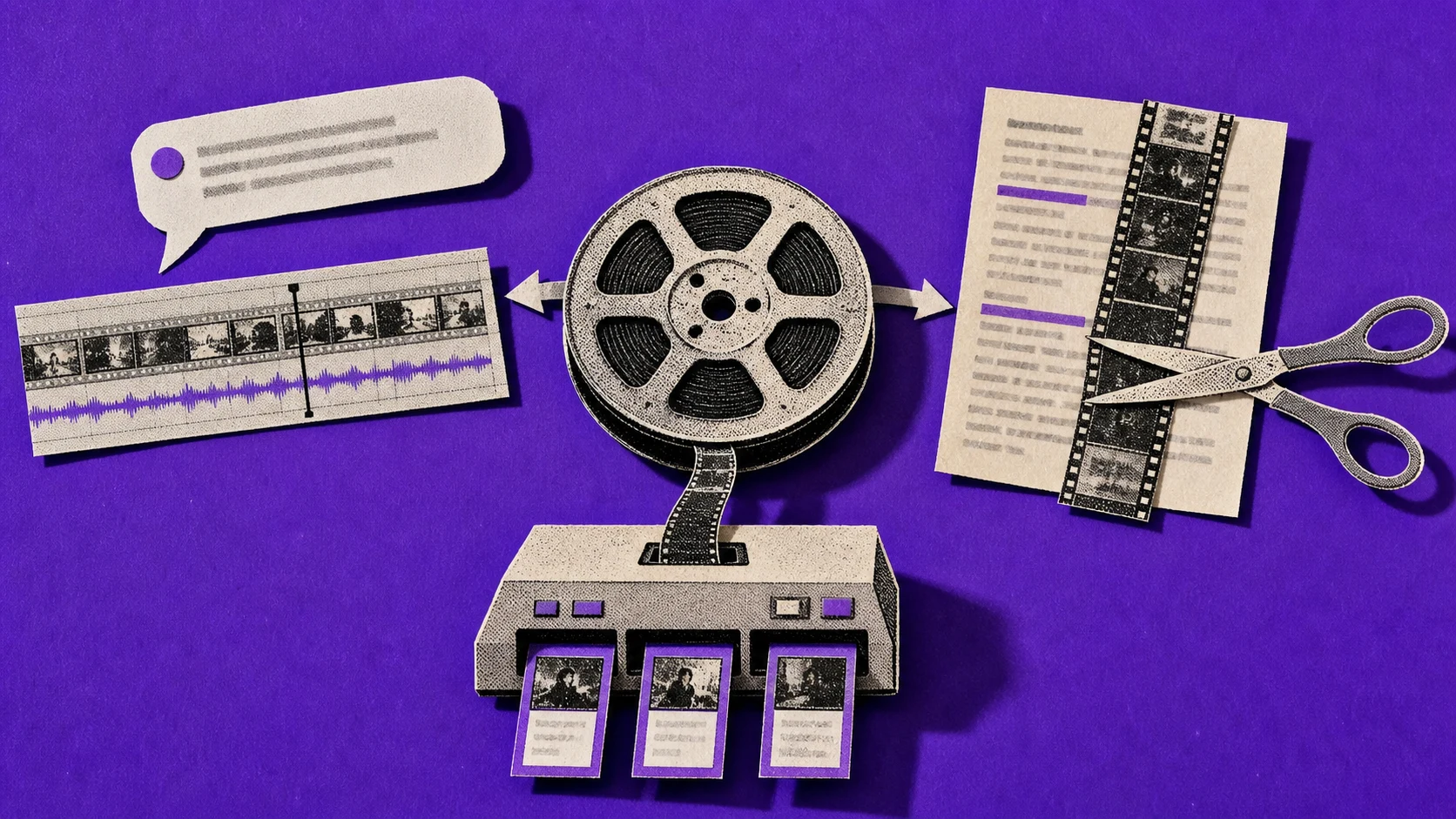
- Recorded tutorial, interview, or talking head: start with ChatCut, Descript, or Gling.
- Long podcast or webinar that needs Shorts: start with OpusClip; compare ChatCut when the clips must remain part of a larger editable project.
- Template-heavy social channel: compare CapCut with VEED.
- Visual transformation inside a short shot: use Runway, then finish the complete episode in an editor suited to long-form assembly.
- Caption-first browser workflow: compare VEED with ChatCut.
The right answer may be a two-tool workflow. A generative shot editor and a transcript-first long-form editor perform different jobs; forcing either one to cover the whole production can add more work than it removes.
How to test ChatCut on YouTube footage

- Open ChatCut in a desktop browser or desktop app and add a representative recording. The first-edit guide covers project creation and media import.
- Describe one concrete result, such as:
Remove selected filler words, tighten pauses longer than two seconds, and keep the project in 16:9. - Inspect the draft in the player, transcript, and timeline. Restore any pause or sentence the first pass should have kept.
- Add and review captions. Correct names, numbers, product terms, line breaks, timing, and screen placement.
- Export a short test file and play the actual output from beginning to end. Check audio, framing, captions, resolution, and duration before processing the full recording.
For Shorts, ask for a separate 9:16 timeline or version and review each crop. Face tracking and automatic reframing still need a human check when a shot contains multiple speakers, screen content, or important text near the edge.
Method and disclosure
This comparison was reviewed on October 13, 2026 using the linked official product pages and documentation. ChatCut publishes this article and is included as one option. No same-footage test across all seven products was recorded for this page, so the comparison does not claim measured speed, caption accuracy, output quality, or an objective overall winner.
The useful decision is workflow fit. Test the finalists on the same representative source, preserve the original file, and record the manual corrections and export checks each tool requires.