The best AI video editor for a podcast or interview depends on what happens before and after the edit. A remote show may need separate local recordings. A documentary interview needs precise control over every sentence. A weekly talking-head channel may care most about removing false starts, adding captions, and producing vertical clips.
This guide compares six tools by those workflows. It separates full-episode editing from clip extraction and uses current first-party product pages rather than an unrecorded same-footage test.
Which tool fits which podcast or interview workflow?
- ChatCut: prompt-led editing of recorded footage, plus generated video, images, voice, music, and motion graphics inside the same project
- Descript: hands-on transcript editing for full episodes and interviews
- FireCut: AI cleanup inside Adobe Premiere Pro or DaVinci Resolve
- Riverside: remote recording with separate participant tracks, followed by transcript editing
- Wisecut: automated cleanup and repurposing for talking-head videos
- OpusClip: extracting and polishing social clips from long recordings
These are workflow fits, not measured winners. Test representative footage, correct one AI decision manually, and inspect the exported file before choosing a production tool.
What should an AI podcast video editor handle?
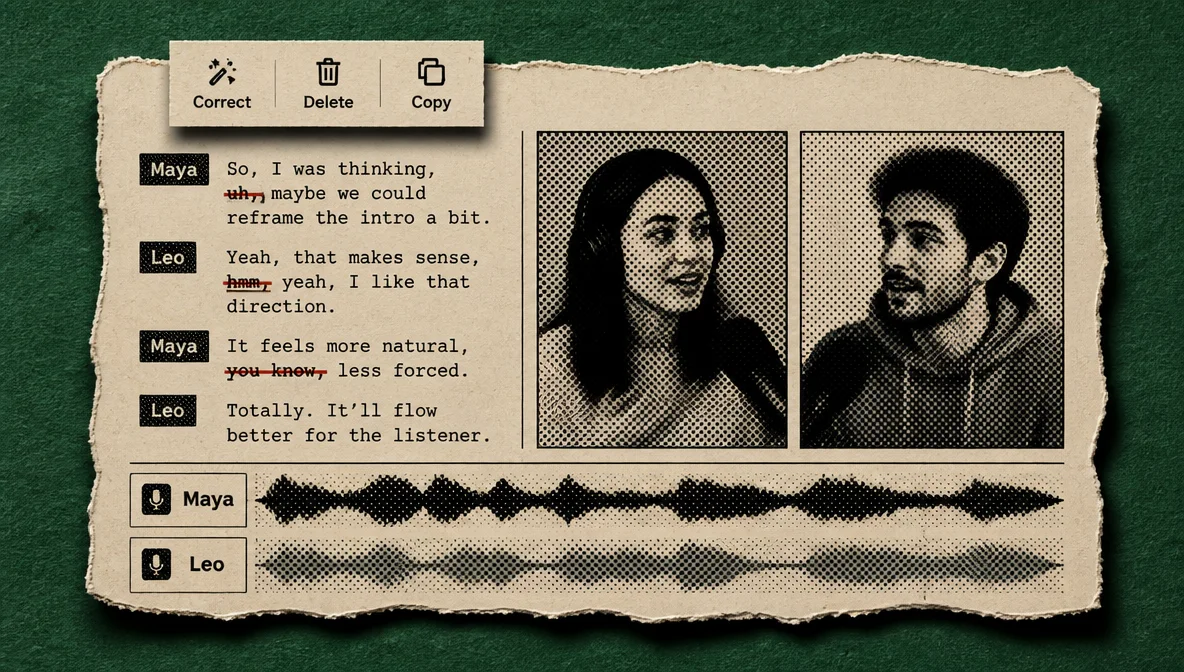
1. Transcript accuracy and speaker labels
Text-based editing only helps when the transcript is usable. Test names, specialist terms, accents, and overlapping speech from your own recordings. For multi-person shows, check whether speaker labels remain easy to correct.
2. Reviewable silence and filler cleanup
A useful first pass should save review time without hiding its decisions. Look for controls that let you restore a pause, keep an intentional hesitation, or change how aggressively silence is shortened.
3. Multi-track recording and editing
Separate local tracks make it easier to balance speakers and recover from connection problems. If you already record elsewhere, confirm that the editor can import and keep your tracks synchronized.
4. Full episodes versus social clips
Full-episode editing asks which arguments and stories should remain. Clip extraction asks which short moments can stand on their own. Some products cover both, while others are designed around one side of that split.
5. Generated supporting media
AI editing can now extend beyond cleanup. Depending on the tool, you may be able to create B-roll, cutaways, captions, voiceover, music, or motion graphics. Generated footage still needs review for accuracy, continuity, rights, and fit with the speaker’s point.
6. Export and handoff
List the deliverables before choosing a tool: full video, audio-only episode, subtitle file, transcript, vertical clips, or a project handoff to another editor. Check the current product documentation and your plan for the formats you need.
Six AI tools for podcast, interview, and talking-head editing
1. ChatCut: edit recorded footage and generate supporting media
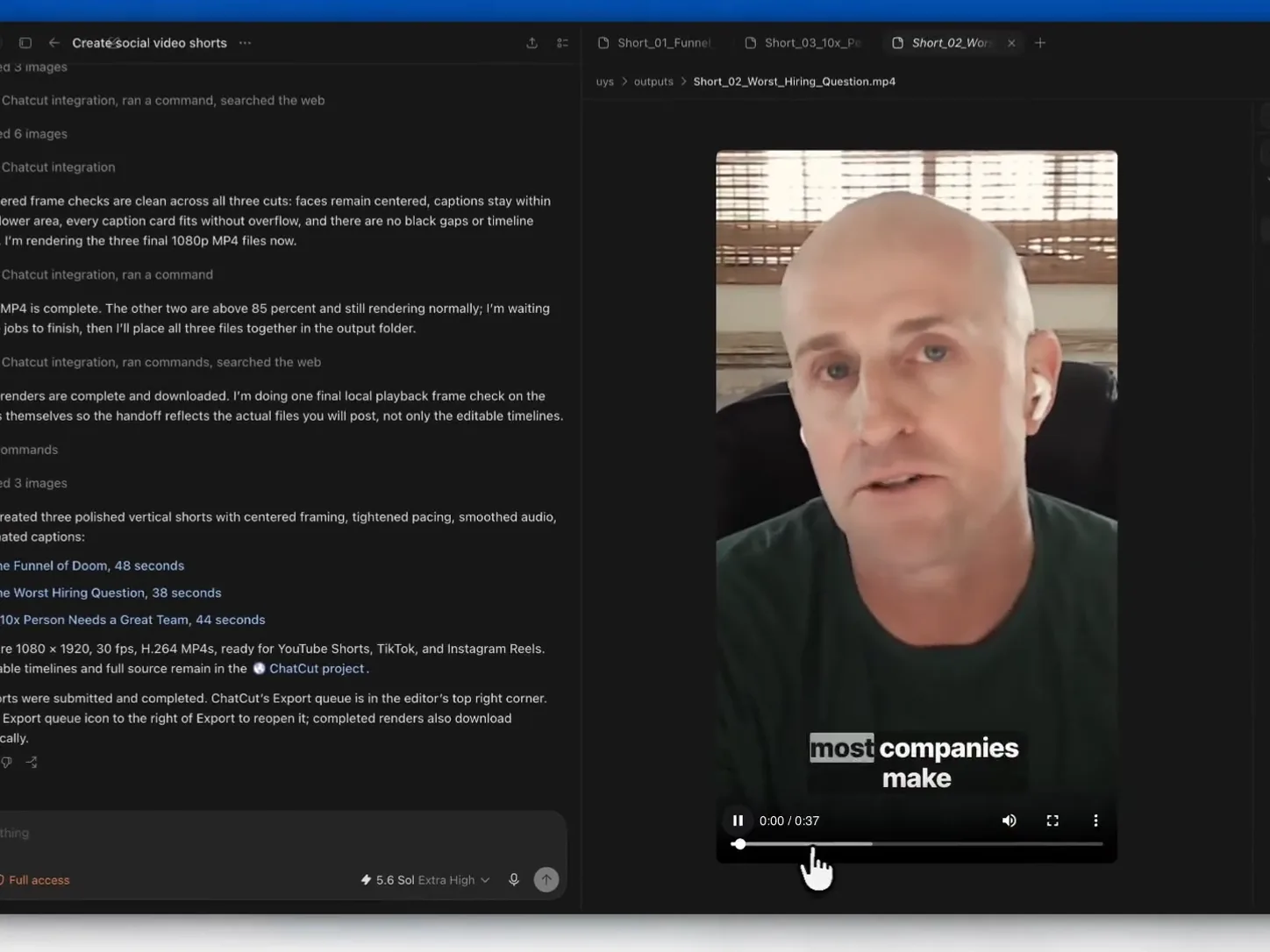
ChatCut’s AI video editor combines conversation, a connected transcript, and a multi-track timeline. You can describe a broad edit in plain language, delete or rearrange words in the transcript, and then inspect the resulting clips on the timeline. This fits interviews, podcasts, tutorials, webinars, and other speech-led footage where the words determine the structure.
ChatCut also generates media inside the project. Its AI video generator can create new footage for B-roll or cutaways, while image, voice, music, caption, and motion-graphics tools can support the recorded edit. Generated assets and uploaded footage remain part of the same editable project rather than separate finished outputs.
Best fit: creators and teams that want prompt-led rough cuts, direct transcript control, timeline refinement, and generated supporting media in one project
Check first: review every editorial selection and generated asset, then inspect captions, audio, timing, continuity, and the final export.
2. Descript: document-style editing for full episodes
Descript’s podcasting workflow brings recording, transcription, text-based editing, clips, and publishing into one product. Deleting words from the transcript changes the corresponding media, while the timeline remains available for more detailed adjustments. Descript also documents filler-word and silence cleanup through its editing tools.
This is a strong fit when producers want to make exact editorial decisions by reading the conversation as a document. It is especially useful for full episodes, documentary interviews, and review workflows where each retained sentence matters.
Best fit: editors who want granular transcript control over a full recording
Check first: test transcript accuracy, the manual correction flow, and current usage limits with a representative episode.
Read the detailed ChatCut vs. Descript comparison.
3. FireCut: AI assistance inside an existing NLE
FireCut works inside Adobe Premiere Pro and DaVinci Resolve. Its official product flow includes silence, filler, repetition, and profanity cleanup, along with captions, chapters, zooms, and other podcast-oriented automation.
This arrangement keeps the project inside an editor that a professional team may already use. FireCut can accelerate the repetitive first pass while the host NLE handles detailed picture, audio, color, and delivery work.
Best fit: Premiere Pro or DaVinci Resolve editors who want AI assistance without moving the project to a separate web editor
Check first: confirm host-editor compatibility and test the proposed cuts before applying them across a long episode.
4. Riverside: remote recording followed by editing
Riverside’s podcast editor connects remote recording with transcript-based post-production. Riverside records participants locally on separate tracks, then provides timeline and transcript editing, captions, layouts, and common speech cleanup in the same service.
That makes Riverside most distinct before the edit begins. A team that regularly records remote guests can reduce the handoff between capture and post-production. Existing imported footage may not benefit from every recording-side feature.
Best fit: remote podcasts and interviews that need separate participant tracks from the recording stage
Check first: compare its imported-media workflow with a session recorded directly in Riverside.
5. Wisecut: automated talking-head cleanup and repurposing
Wisecut focuses on turning speech-led recordings into cleaned and reformatted videos. Its current product page documents automatic silence removal, false-start and repeated-take cleanup, subtitles, highlights, reframing, punch-ins, and background-music ducking.
This is useful for creators who publish frequent talking-head videos and want an automated first pass. The same automation deserves closer review when an interview depends on long pauses, emotional timing, or complex narrative structure.
Best fit: regular talking-head, tutorial, and interview publishing with repeatable cleanup and format changes
Check first: review its silence and clean-edit decisions against a clip with intentional pauses and multiple takes.
6. OpusClip: long recordings to social clips
OpusClip’s AI video editor is centered on turning long video into short clips. Its current workflow covers highlight selection, captions, reframing, audio cleanup, B-roll, and an editor for refining the generated clips.
This is the clearest fit when the primary deliverable is a batch of Shorts, Reels, or TikToks from a podcast, interview, webinar, or livestream. If the team also needs a carefully structured full episode, verify that the available editing surface covers that job or plan a handoff to another editor.
Best fit: podcasters and marketers repurposing long recordings into social clips
Check first: judge the selected moments in the context of the full conversation; a high-scoring excerpt can still omit an essential qualification.
Read the detailed ChatCut vs. OpusClip comparison.
A practical way to choose
- Choose a real sample. Use five to ten minutes with at least two speakers, one intentional pause, one false start, a name, and a specialist term.
- Define the deliverable. Decide whether you need a full episode, an audio version, social clips, or all three.
- Run the same first pass. Ask each tool to transcribe, label speakers, remove obvious fillers, and shorten dead air.
- Make one correction. Restore a pause, fix a name, change a cut, and adjust a caption. The correction workflow matters as much as the automatic result.
- Inspect the export. Watch for clipped words, jumpy framing, caption errors, inconsistent levels, and missing context.
- Check the live plan. Compare current limits only after you know the tool fits the work. Prices and allowances change more often than the underlying workflow.
Common mistakes when editing interviews with AI
- Accepting the rough cut without review. Automated cleanup can mistake an intentional pause for dead air.
- Removing every hesitation. Perfectly compressed speech can sound rushed and erase personality.
- Ignoring transcript errors. Correct names and technical terms before using text search or transcript-driven cuts.
- Confusing clip extraction with episode editing. A strong short clip does not automatically preserve the argument of a full conversation.
- Adding generated B-roll without checking it. A visually plausible insert can be factually wrong or conflict with what the speaker says.
- Skipping the visual pacing pass. Cleaner dialogue may still need reframing, captions, cutaways, or subtle punch-ins.
Method and disclosure
The ChatCut editorial team reviewed the linked first-party product pages on October 13, 2026. ChatCut publishes this guide and is one of the products covered. We did not run or record a controlled same-footage benchmark across all six tools, so the recommendations describe documented workflows rather than measured speed, accuracy, or output quality. Product features, plans, and limits can change; verify the linked official page before choosing a tool.